

-
Book Overview & Buying
-
Table Of Contents

-
Feedback & Rating

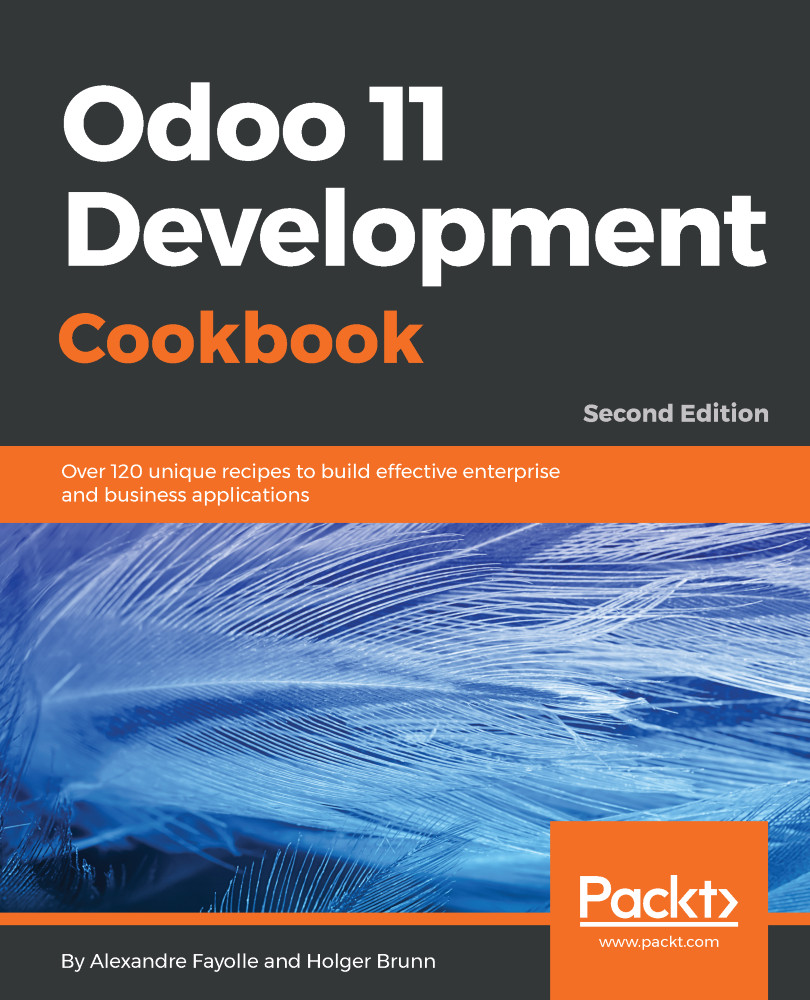
Odoo 11 Development Cookbook - Second Edition - Second Edition
By :


Odoo 11 Development Cookbook - Second Edition
By:
Overview of this book
Odoo is a full-featured open source ERP with a focus on extensibility. The flexibility and sustainability of open source are also a key selling point of Odoo. It is built on a powerful framework for rapid application development, both for back-end applications and front-end websites. Version 11 offers better usability and speed: a new design (as compared to the current Odoo Enterprise version) and a mobile interface.
The book starts by covering Odoo installation and administration and Odoo Server deployment. It then delves into the implementation of Odoo modules, the different inheritance models available in Odoo. You will then learn how to define access rules for your data; how to make your application available in different languages; how to expose your data models to end users on the back end and on the front end; and how to create beautiful PDF versions of your data.
By the end of the book, you will have a thorough knowledge of Odoo and will be able to build effective applications by applying Odoo development best practices
Table of Contents (23 chapters)
Title Page


Copyright and Credits
Packt Upsell
Contributors
Preface
 Free Chapter
Installing the Odoo Development Environment

Managing Odoo Server Instances
Server Deployment
Creating Odoo Addon Modules
Application Models
Basic Server-Side Development
Module Data
Debugging and Automated Testing
Advanced Server-Side Development Techniques
Backend Views
Access Security
Internationalization
Automation, Workflows, Emails, and Printouts
Web Server Development
Web Client Development
CMS Website Development
Other Books You May Enjoy
Index
Customer Reviews