-
Book Overview & Buying
-
Table Of Contents
-
Feedback & Rating
C# 7.1 and .NET Core 2.0 - Modern Cross-Platform Development - Third Edition
By :
When you install Visual Studio 2017, Visual Studio for Mac, or the .NET Core SDK, a Command-Line Interface (CLI) tool named dotnet is installed, as well as the .NET Core runtime.
Before we use CLI tools, such as dotnet, we need to write some code!
If you are using Windows, start Notepad.
If you are using macOS, launch TextEdit. Navigate to TextEdit | Preferences, clear the Smart quotes check box, and then close the dialog. Navigate to Format | Make Plain Text.
Alternatively, run your favorite plain text editor.
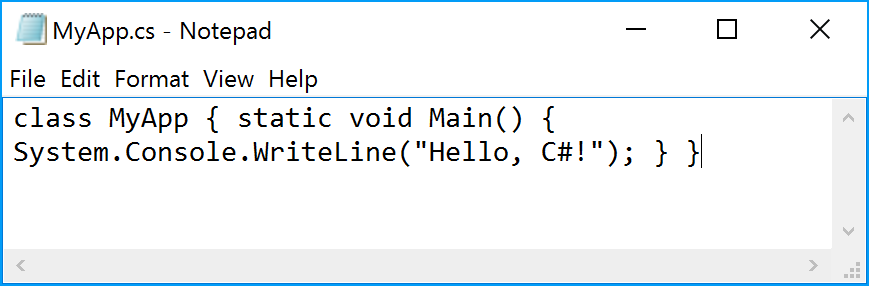
Enter the following code:
class MyApp { static void Main() {
System.Console.WriteLine("Hello, C#!"); } }C# is case sensitive, meaning that you must type uppercase and lowercase characters exactly as shown in the preceding code. C# is not whitespace sensitive, meaning that it does not care if you use tabs, spaces, or carriage-returns to layout your code however you like.
You can type the code all in one line, or spread it out over multiple lines and indent your lines. For example, the following code would also compile and have the same output:
class
MyApp {
static void
Main (){System. Console.
WriteLine( "Hello, C#!"); } } Of course, it's best to write your code in a way that other programmers, and yourself months or years later, can clearly read!
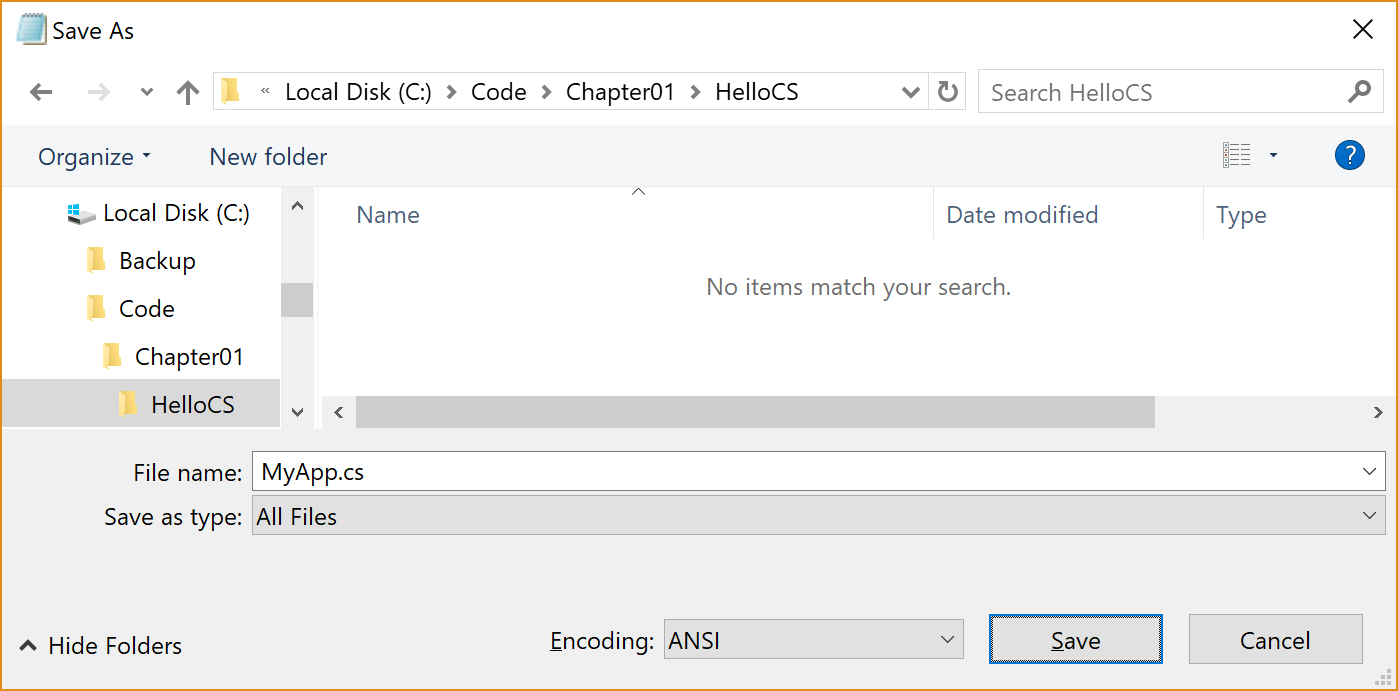
In Notepad, navigate to File | Save As....
In the Save As dialog, change to drive C: (or any drive which you want to use to save your projects), click on the New folder button, and name the folder Code. Open the Code folder, and click on the New folder button, and name the folder Chapter01. Open the Chapter01 folder, and click on the New folder button, and name the folder HelloCS. Open the HelloCS folder.
In the Save as type field, select All Files from the drop-down list to avoid appending the .txt file extension, and enter the filename as MyApp.cs, as shown in the following screenshot:

Your code in Notepad should look something like the following screenshot:

In TextEdit, navigate to File | Save..., or press Cmd + S.
In the Save dialog, change to your user folder (mine is named markjprice) or any directory in which you want to use to save your projects, click on the New Folder button, and name the folder Code. Open the Code folder, and click on the New Folder button, and name the folder Chapter01. Open the Chapter01 folder, and click on the New Folder button, and name the folder HelloCS. Open the HelloCS folder.
In the Plain Text Encoding field, select Unicode (UTF-8) from the drop-down list, uncheck the box for If no extension is provided, use ".txt" to avoid appending the .txt file extension, enter the filename as MyApp.cs, and click on Save.
If you are using Windows, start Command Prompt.
If you are using macOS, launch Terminal.
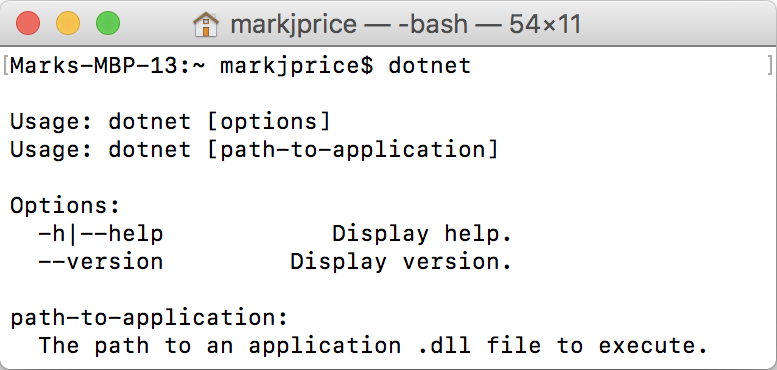
At the prompt, enter the dotnet command and note the output, as shown in the following screenshot on macOS:

The output from the dotnet command-line tool will be identical on Windows, macOS, and Linux.
Enter the following commands at the prompt to do the following:
dotnet command-line tool createdIf you are using Windows, in Command Prompt, enter the following:
cd C:\Code\Chapter01\HelloCS dotnet new console dir
If you are using macOS, in Terminal, enter this:
cd Code/Chapter01/HelloCS dotnet new console ls
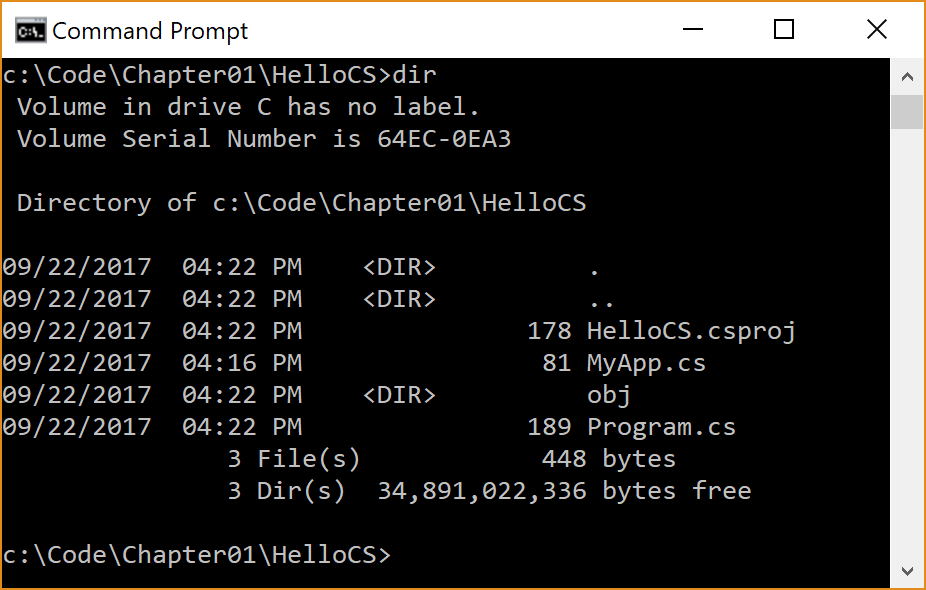
You should see that the dotnet tool has created two new files for you, as shown in the following screenshot on Windows:
Program.cs: Source code for a simple console applicationHelloCS.csproj: A project file that lists dependencies and project-related configuration:
For this example, we must delete the file named Program.cs, since we have already created our own class in the file named MyApp.cs.
If you are using Windows, in Command Prompt, enter the following command:
del Program.csIf you are using macOS, in Terminal, enter this:
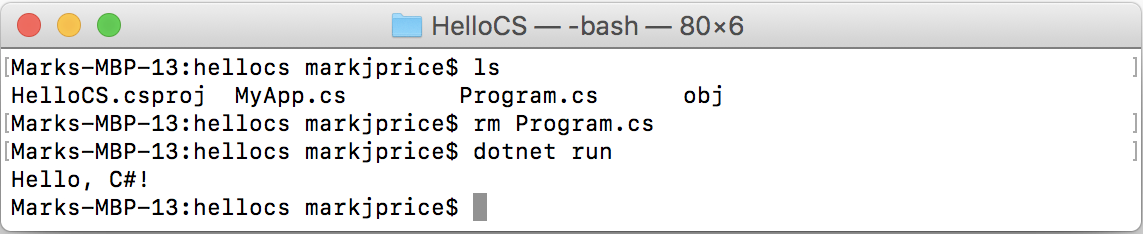
rm Program.csIn all future examples, we will use the Program.cs file generated by the tool rather than manually create our own.
At the prompt, enter the dotnet run command.
After a few seconds, all the packages needed by our code will be downloaded, the source code will be compiled, and your application will run, as shown in the following screenshot on macOS:

Your source code, the MyApp.cs file, has been compiled into an assembly named HelloCS.dll in the bin/Debug/netcoreapp2.0 subfolder. (Browse your filesystem for it if you like, I'll be waiting here for you to come back and continue.)
For now, this assembly can only be executed by the dotnet run command. In Chapter 7, Understanding and Packaging .NET Standard Types, you will learn how to package your compiled assemblies for use on any operating system that supports .NET Core.
If the compiler displays errors, read them carefully, and fix them in your text editor. Save your changes and try again.
At the prompt, you can press the up and down arrows on your keyboard to cycle through previous commands you have entered.
A typical error might be using the wrong case, a missing semicolon at the end of a line, or a mismatched pair of curly braces. For example, if you mistyped a lowercase m for the Main method, you would see the following error message:
error CS5001: Program does not contain a static 'Main' method
suitable for an entry pointThe C# compiler (named Roslyn) used by the dotnet CLI tool converts your C# source code into IL code, and stores the IL in an assembly (a DLL or EXE file).
IL code statements are like assembly language instructions, but they are executed by .NET Core's virtual machine, known as the CoreCLR.
At runtime, the CoreCLR loads the IL code from the assembly, JIT compiles it into native CPU instructions, and then it is executed by the CPU on your machine.
The benefit of this two-step compilation process is that Microsoft can create CLRs for Linux and macOS as well as for Windows. The same IL code runs everywhere because of the second compilation process that generates code for the native operating system and CPU instruction set.
Regardless of which language the source is written in, for example, C# or F#, all .NET applications use IL code for their instructions stored in an assembly. Microsoft and others provide disassembler tools that can open an assembly and reveal this IL code.
Actually, not all .NET applications use IL code! Some use .NET Native's compiler to generate native code instead of IL code, improving performance and reducing memory footprint, but at the cost of portability.